Redshift Volume Setup
Setting up volume materials in Redshift for Houdini
Setup Overview
For proper volume rendering in Redshift, you need to:
- Create a separate SOP in the object context specifically for the volume
- Apply a volume-specific material to this SOP
- Set up the Redshift material with proper volume connections
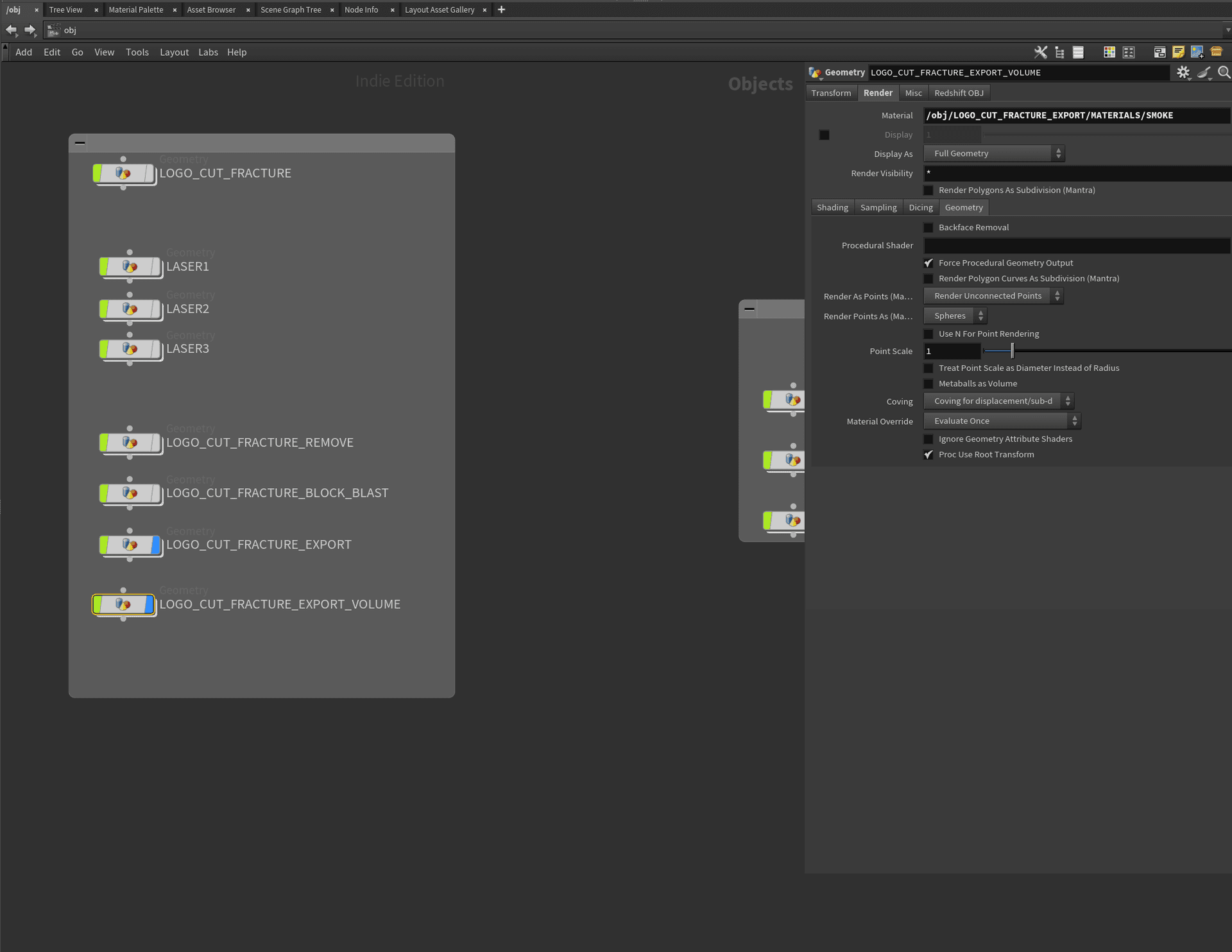
Volume SOP Setup
Create a dedicated SOP for your volume in the object context:
Material Assignment
Apply a volume material to the SOP:
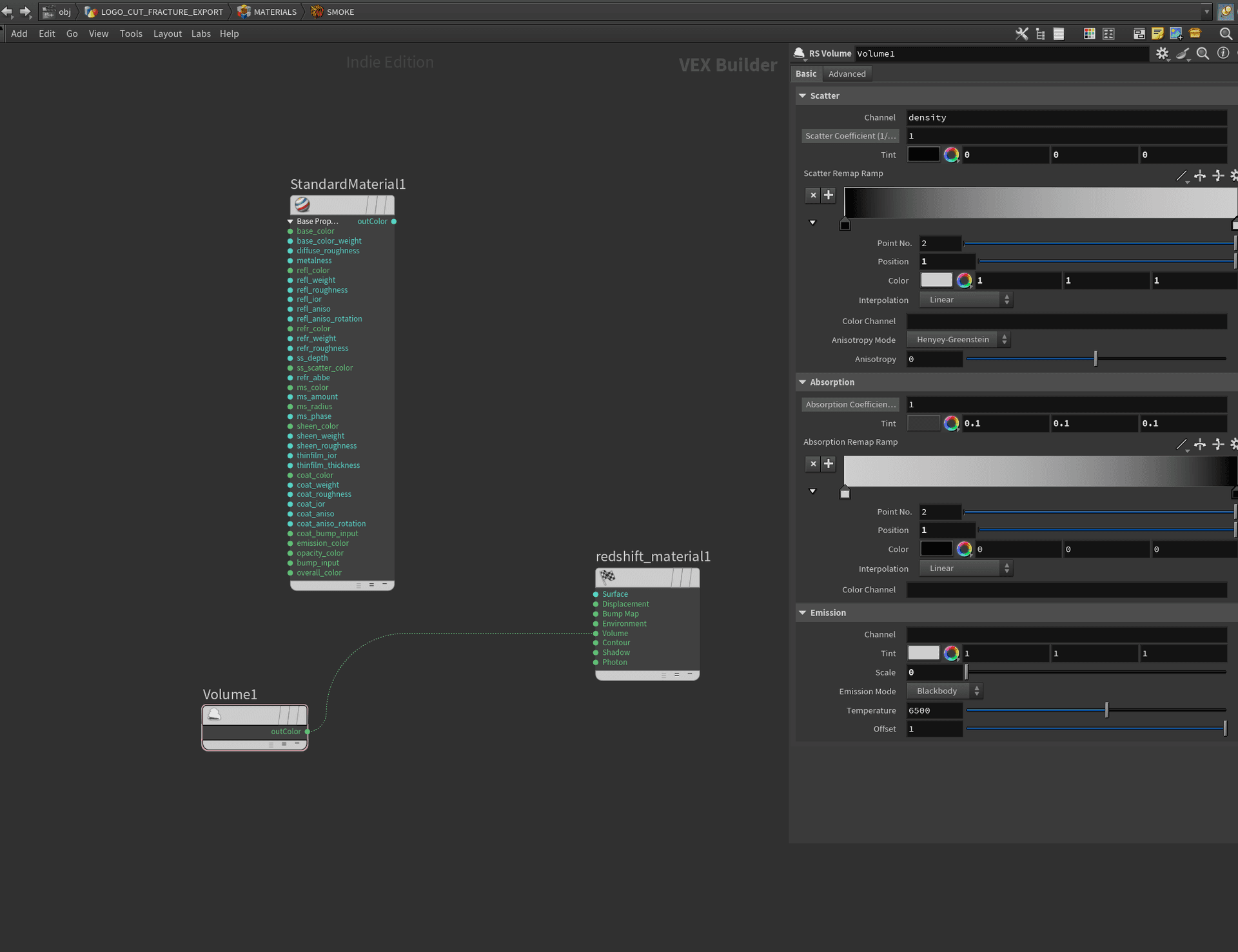
Redshift Material Setup
In the Redshift Material Builder:
- Remove the default surface connection
- Add a Redshift Volume node
- Connect the Volume node to the volume input
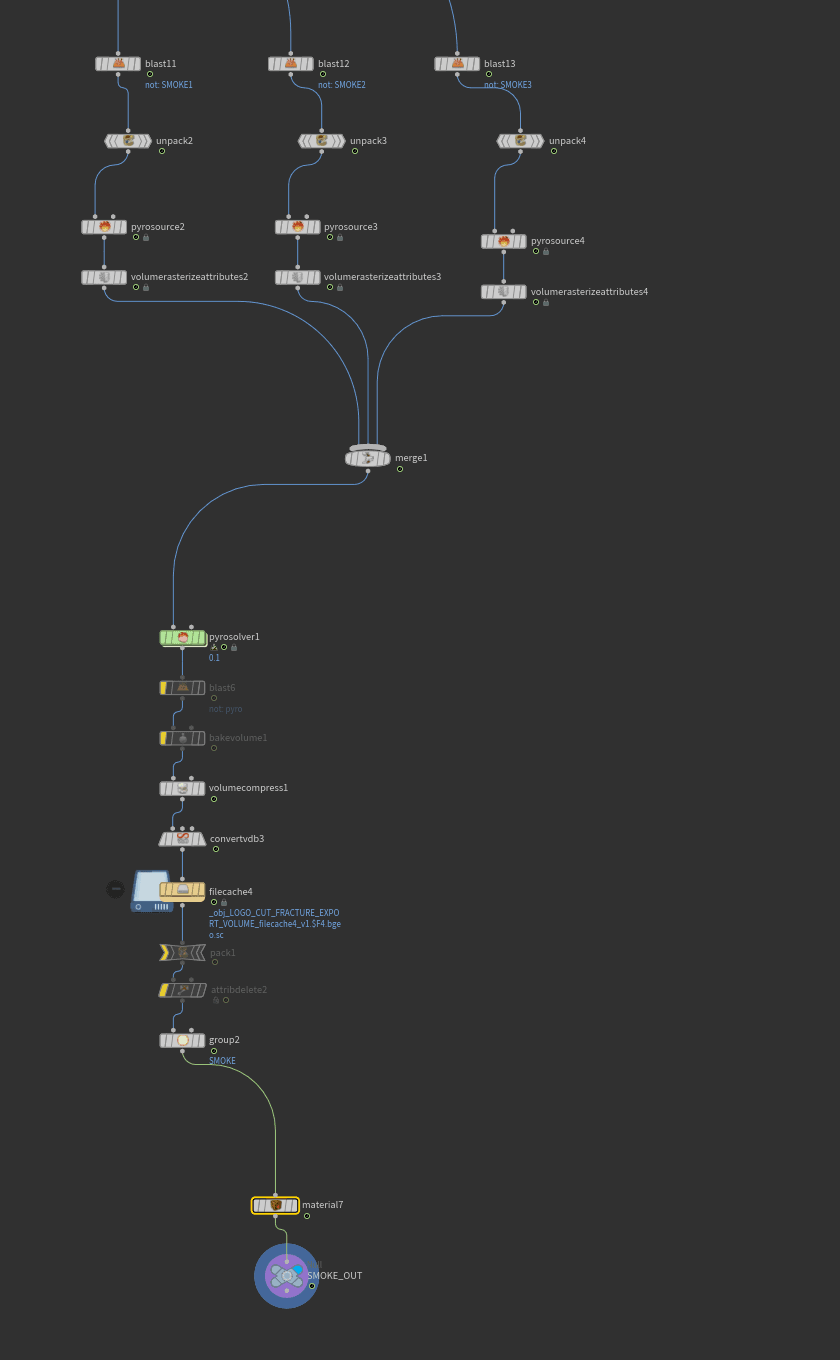
Important Notes
- Keep volume geometry separate from other geometry for better control and optimization
- Use volume-specific parameters in the Redshift Volume node for fine-tuning the look
- Consider using multiple scattering for more realistic results, though it will increase render time